Texting Menu Overview
The Texting Menu contains the commands that are used when selecting your options related to the texting capabilities within Skyware. Whilst various texting options are found throughout Skyware, this menu brings the separate texting functionality together under one menu. This includes the Text Messaging screen, the two way messaging sytem designed for use within Skyware which may also be reached through the Activities Menu, the Texting Custom Messages (Stays) screen, which allow you to generate and save the custom messages that will then be available for use with your guest communications, batch texting and soft check-in options, and the Texting Custom Messages (Activities) screen ( for use with the Schedule Types screen (General tab)), which has options for confirmation, reminder, cancellation and follow-up texts to be selected for use with your activity services. Both of these options may also found on the Interfaces Menu, reached via the Property System Configuration Menu. The Texting Menu also includes the new Texting Report., where all text messages sent (using the two way texting system) within Skyware may be reported on. This can be in summary (month, year, number of texts) or detail (date text sent, number the text was sent from, body of text, direction of the text and status).
 To access the Texting Menu and its features:
The Texting Menu is reached via the Other Front Desk Tasks Menu:
To reach the Other Front Desk Tasks Menu:
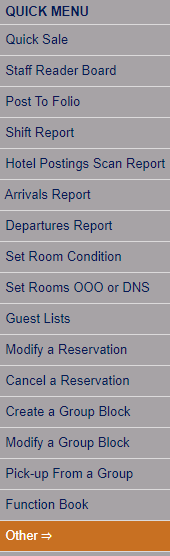
Depending on your Skyware Systems set-up, you may or may not have a quick menu option for the Other Front Desk Tasks Menu area. If you can, select Other => from the Quick Menu on the left side of the screen.
OR
OR
Select Other => from the Other section (bottom right) of the Full Menu.
Click the icon on the left for the Full menu.
 OR
OR
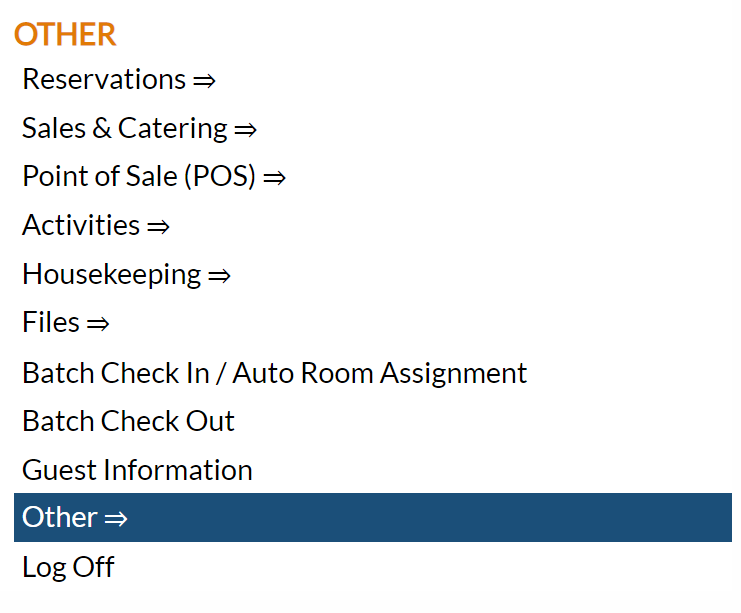
This will display the Full menu in a tabular form, with four sections, Registration, Status, Cashier and Other.
OR
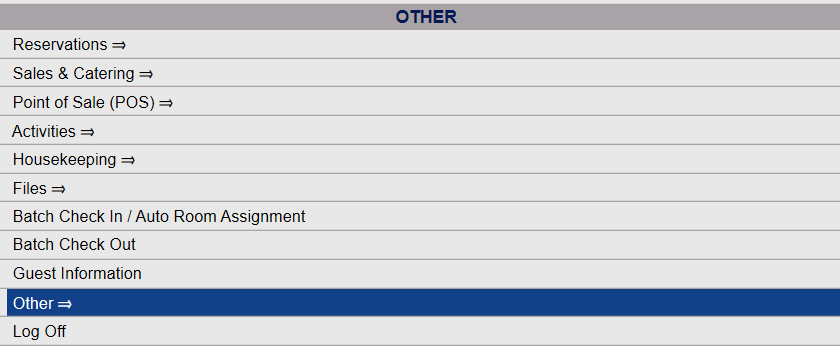
From the Other Section, select Other =>.
OR
This will display the Other Front Desk Tasks Menu.
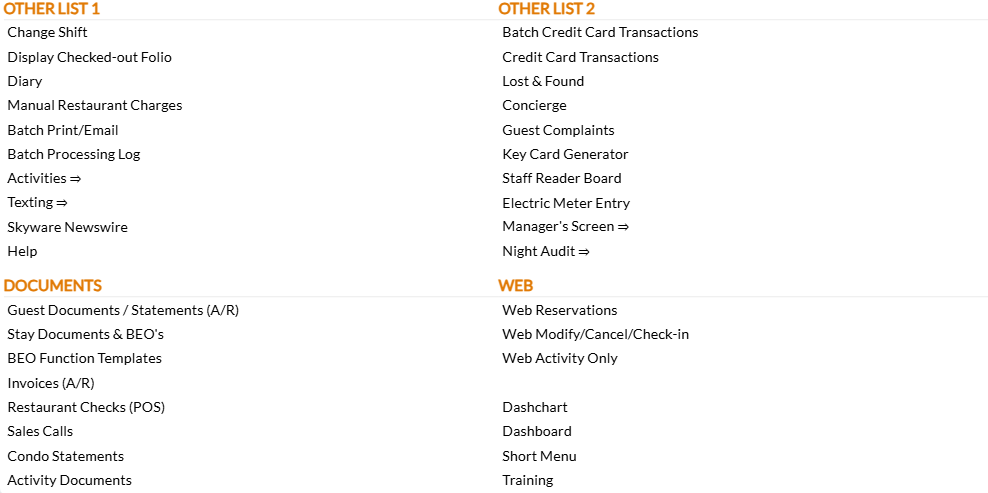
The Other Front Desk Tasks Menu area is divided into four sections: Other List 1, Other List 2, Documents and Web.
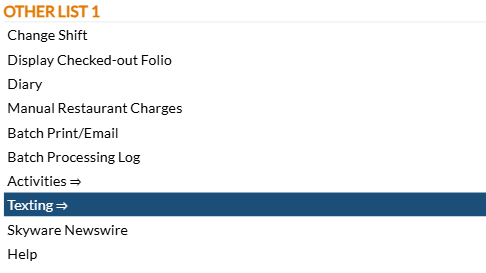
Select the Texting => command from the Other List 1 section.
This will display the Texting Menu.
The Texting Menu is divided into 4 sections: Items, Reports, Custom Messages and Other.
Items Section:
Text Messages: This command opens the Text Messaging screen. Response texts will be received on the Text message screen (even if the initial text message was sent from elsewhere within Skyware). Text messages may also be generated using the Text Messages screen in Skyware, and sent to any guest that has already received a message from your Property, OR any User (so long as they have a valid phone number entered into their User profile). The recipient will receive the message on their phone as well as it appearing on the Text message screen. Response texts will be received ONLY on the Text message screen, this is the only place in Skyware allowing TWO-WAY texting. Further messages may be sent in the message chain, not just one.
The (Two Way) Text Messaging command may also be found on the Activities Menu.
Note: The Text Messaging screen is SEPARATE and DIFFERENT to the other messaging systems within Skyware that allow the Property to communicate with guests. The ability to send email or text messages to your guests exists within Skyware in multiple locations (such as the Guest Communications screen, or the Batch Texting screen). This screen is intended for receiving both guest RESPONSES, and inter-staff use. This screen will therefore NOT allow the very first sending of a text to a guest. This must be initiated elsewhere. Only then will the guest name and number appear on the screen.
Batch Texting (Stays):This command opens the Batch Texting (Stays) screen. This screen allows you to send a text message to MULTIPLE guests, (for example guests currently in-house or with reservations on specified dates), all at once (rather than individual messages, one at a time). Batch texts may be sent to guests in a particular building, specific Room Types, multiple Guest Types, different Rate Plans, or even guests in individual rooms may be selected as recipients.
Batch Texting (Activities): This command opens the Batch Texting (Activities) screen. This screen allows you to send a text message to MULTIPLE guests, for all the activities scheduled on a specific date, and may be filtered by the Attendant, the Schedule and by multiple activity types.
Reports Section:
Texting Report: This command opens the Texting Report screen, which may be used to generate a summary or detailed report on the text messages sent or received within Skyware at your Property. Summary includes only the month, year, and number of the texts sent; Detail includes the date the text was sent, the number the text was sent from, the body of the text, the direction of the text and its status.
Custom Messages Section:
Texting Custom Messages (Stays): This command allow you to generate and save the custom messages that will then be available for use with your guest communications, batch texting and soft check-in options. Generating custom messages allows you to re-use the message as often as you wish. For example you may have a thunderstorm/tornado alert that can be sent out quickly whenever necessary to all your guests. Once saved via the Texting Custom Messages (Stay) screen, the message will be added to those available on the other screens.
Texting Custom Messages (Activities): This command allows you to generate custom re-usable messages that you wish to send to confirm, cancel, and remind your guests about any activity appointments. These messages may then be used with the Schedule Types screen (General tab), which has options for confirmation, reminder, cancellation and follow-up texts to be selected for use with your activity services.
Note: Custom messages for stays and activities are generated separately; a message generated using the Texting Custom Messages (Stay) screen CANNOT be accessed for use with any Activities you offer, and vice versa.
Both the Texting Custom Messages (Stay) command and the Texting Custom Messages (Activities) command may also be found on the Interfaces Maintenance Menu.
Other Section:
Currently this section is empty.
Date Updated July 28, 2026
 OR
OR 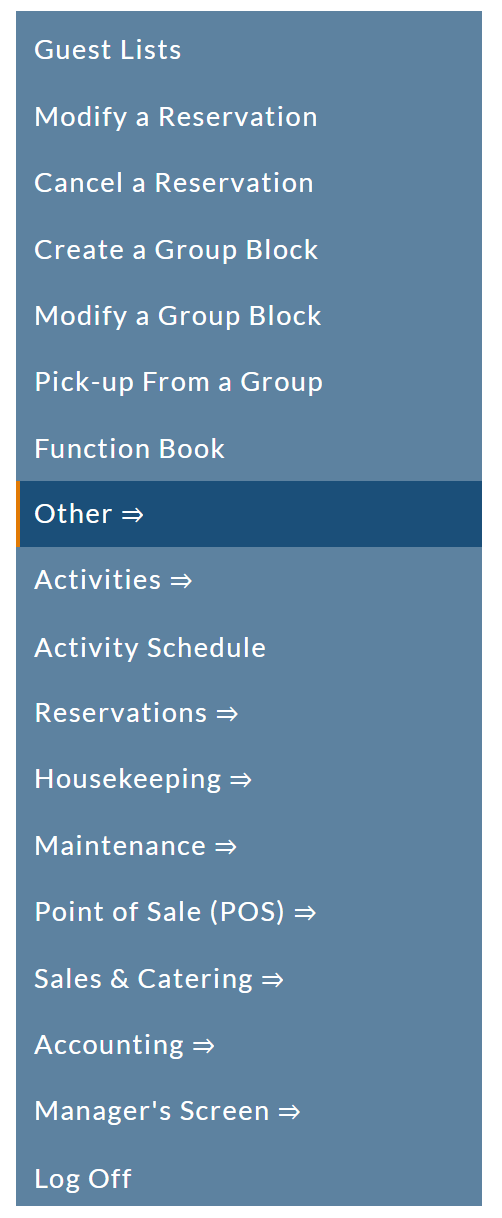

 OR
OR 
 OR
OR